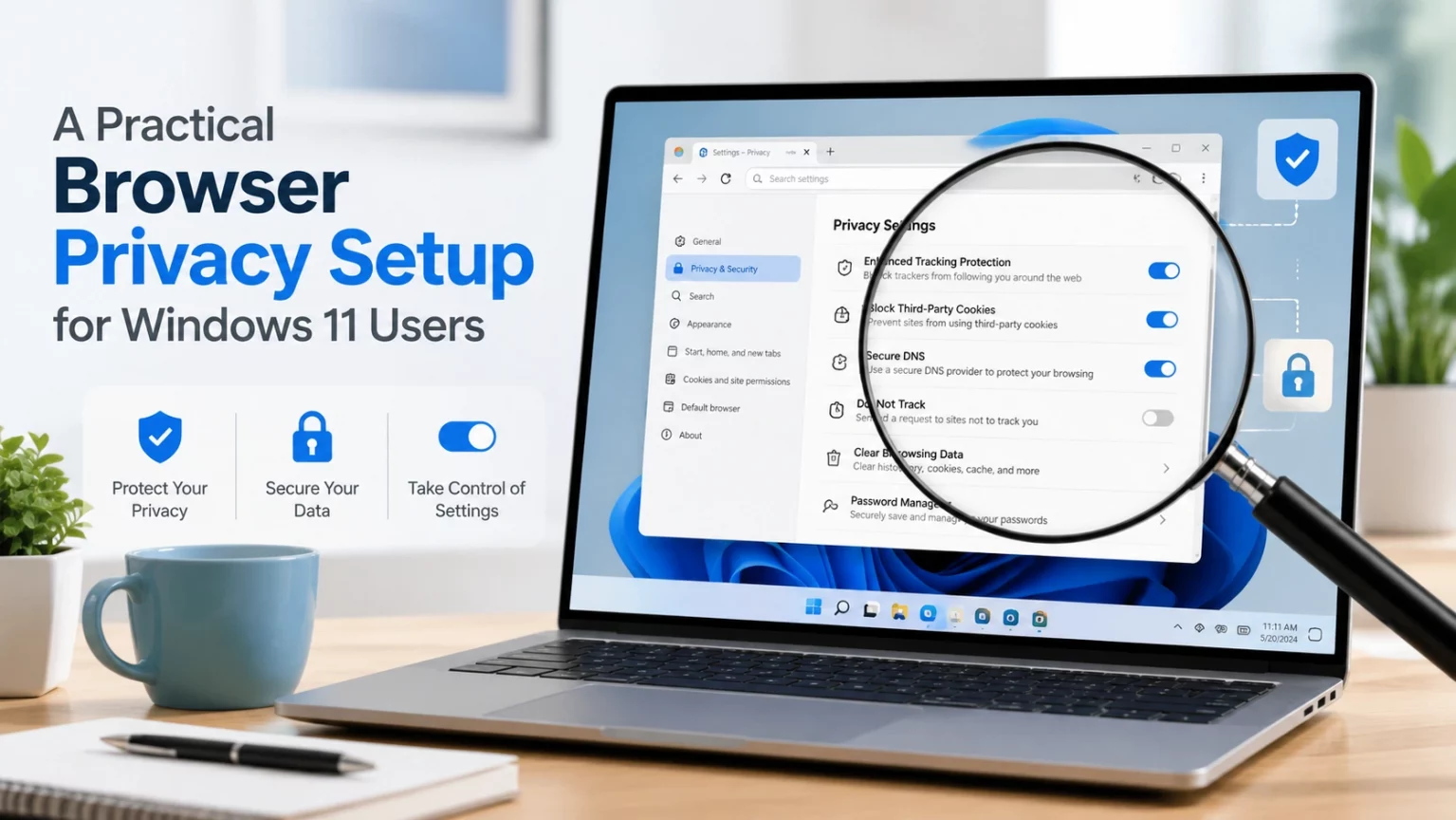
Most of us use a browser all day without thinking much about it. We check email, pay bills, log into Microsoft 365, shop, research, read the news, and sometimes click links we probably should have looked at twice. The browser has become one of the most important security tools on a Windows 11 PC.
The problem is that the modern web is noisy. Many websites are packed with advertising scripts, trackers, pop-ups, cookie prompts, analytics tools, and sometimes outright malicious links. Some mainstream browsers also lean heavily into advertising, search, shopping, syncing, and data-driven features. That does not automatically mean they are “bad,” but it does mean you should be intentional about which browser you use and how much information you allow it to collect or share.
You do not need to become a cybersecurity expert to browse more safely. A few simple choices can reduce tracking, cut down on annoying ads, improve performance, and help protect you from phishing and malware. The goal is not to make your PC impossible to track. That is a much harder project. The goal is to create a practical setup that works well for normal Windows 11 users without breaking half the websites you visit.
Here is the browser setup I recommend for most home users, office workers, and small-business professionals.
Tip 1: Use Brave as your everyday browser
Brave is a good daily browser because it gives you strong privacy features without asking you to become a browser mechanic. It is based on Chromium, so most websites that work in Chrome will also work in Brave. Brave Shields blocks many ads, trackers, cross-site cookies, and fingerprinting attempts by default, which can make browsing feel cleaner and faster.
How to use it:
- Install Brave on your Windows 11 PC.
- Open Settings.
- Go to Shields.
- Leave Shields turned on.
- Start with the default protection level.
- If you want stronger blocking, change tracker and ad blocking to a stricter setting, but expect a few more broken sites.
Shortcut:
Click the Brave lion icon in the address bar to quickly see or adjust Shields for the site you are visiting.
Why it matters:
Ad and tracker blocking is not just about privacy. It can also reduce page clutter, unwanted scripts, and some malicious advertising exposure. Brave gives you a solid privacy baseline without needing several add-ons.
Tip 2: Keep Microsoft Edge for Microsoft 365 and banking
Even if Brave becomes your main browser, do not remove Microsoft Edge. For Windows 11 users who rely on Microsoft 365, Edge is a useful “trusted work and banking” browser. It also includes Microsoft Defender SmartScreen, which Microsoft describes as protection against phishing sites and sites that try to distribute malware.
How to use it:
- Use Edge for Microsoft 365, Outlook, Teams, SharePoint, OneDrive, banking, healthcare portals, and government sites.
- Open Edge settings.
- Go to Privacy, search, and services.
- Make sure Microsoft Defender SmartScreen is turned on.
- Keep extensions to a minimum.
Shortcut:
Pin Edge to your taskbar and think of it as your “important accounts” browser.
Why it matters:
Separating sensitive accounts from everyday browsing reduces clutter and risk. If your daily browser has more extensions, saved sessions, or experimental settings, your banking and business accounts stay in a cleaner environment.
Tip 3: Use Firefox with uBlock Origin as your privacy-focused backup
Firefox is a strong secondary browser because it is not based on Chromium. It includes Enhanced Tracking Protection, and Mozilla says Total Cookie Protection helps keep cookies separated by website so tracking companies cannot easily follow you from site to site.
Firefox also pairs well with uBlock Origin. On Mozilla’s add-on site, uBlock Origin is described as a wide-spectrum content blocker focused on CPU and memory efficiency, and it blocks ads, trackers, coin miners, popups, and more out of the box.
How to use it:
- Install Firefox.
- Install uBlock Origin from Mozilla Add-ons.
- Open Firefox settings.
- Go to Privacy & Security.
- Set Enhanced Tracking Protection to Strict if you are comfortable troubleshooting occasional site issues.
- Use Firefox when you want a cleaner, more privacy-focused session.
Shortcut:
Press Ctrl + Shift + P in Firefox to open a private browsing window.
Why it matters:
Firefox gives you a strong non-Chromium option. That is useful for privacy, testing, and avoiding dependence on one browser ecosystem.
Tip 4: Keep Chrome only for specific Google or AI-related tasks
Chrome is still useful, especially if you rely on certain Google services or extensions that behave best in Chrome. But I would not make it your main privacy browser. Google has been moving Chrome away from older Manifest V2 extensions, and its developer documentation says Manifest V2 extensions have been disabled by default for users, which affects older extension models used by some classic ad blockers.
How to use it:
- Keep Chrome installed only if you need it.
- Use it for specific Google apps or tools.
- Avoid using it for banking if you install AI tools, shopping add-ons, or experimental extensions.
- Do not save passwords in Chrome once you migrate to a dedicated password manager.
Shortcut:
Create a Chrome profile named Google / AI Tools so you remember what it is for.
Why it matters:
Chrome is compatible and convenient, but it is not the best choice if your main goal is privacy. Keeping it limited helps you get the benefits without making it your all-purpose browser.
Tip 5: Do not install every “security” browser extension
This sounds backwards, but more security extensions do not always mean more security. Extensions can require access to pages you visit, and Google’s own Chrome Web Store help explains that some extensions can be allowed to read and change site data. Mozilla also explains that certain Firefox extension permissions may allow an extension to read web page content and data entered into those pages.
How to use it:
- Review your browser extensions.
- Remove anything you do not actively use.
- Avoid coupon extensions, random PDF tools, unknown AI extensions, and “helper” add-ons you forgot installing.
- Keep only trusted essentials, such as a password manager or uBlock Origin in Firefox.
- Check extension permissions before installing anything new.
Shortcut:
In most Chromium browsers, type chrome://extensions or brave://extensions into the address bar to review installed extensions.
Why it matters:
Extensions can become a weak point. Even reputable extensions increase your browser’s attack surface. Fewer extensions means fewer things that can see, change, or interfere with your browsing.
Tip 6: Be cautious with the Norton Safe Web extension
Norton Safe Web can provide reputation warnings about risky websites. Norton describes Safe Web as a tool that helps protect against scams and malicious sites while browsing.
That said, I would not install it everywhere by default. Brave already has built-in protections, and Edge already has Microsoft Defender SmartScreen. For banking and Microsoft 365, I prefer a clean browser with as few extensions as possible. The same goes for browser extensions from McAfee, Avast, AVG, Bitdefender, and Malwarebytes. If you’re using Brave as your main browser, you really don’t need them. If you’re using Chrome, you likely do need them.
How to use it:
- If you want to use Norton Safe Web or one from a different security suite provider, consider installing it only in Chrome or a secondary browser.
- Avoid installing Norton Safe Search or Norton Home Page unless you specifically want Norton to control your search or homepage.
- Do not install Norton browser extensions in your banking browser unless you have a clear need.
- If a Norton extension asks for broad permissions, pause and decide whether the benefit is worth it.
Shortcut:
Use Norton Safe Web’s website lookup manually when you want to check a suspicious link instead of installing the extension everywhere.
Why it matters:
Website reputation tools can help, but they are not magic. Your browser already has warning systems, and adding another extension may create privacy, performance, or clutter tradeoffs.
Tip 7: Move your passwords to Bitwarden
Using browser-based password managers is better than reusing passwords, but it can tie your passwords to one browser ecosystem. If you use Firefox, Chrome, Norton, and maybe Edge, your passwords can become scattered. Bitwarden is a good move because it works across browsers and platforms, and Bitwarden describes its model as end-to-end encrypted and zero knowledge.
How to use it:
- Export passwords from Firefox, Chrome, and Norton Password Manager.
- Import them into Bitwarden.
- Clean up duplicates.
- Change weak or reused passwords.
- Turn on multi-factor authentication for Bitwarden.
- Turn off password saving in your browsers.
- Once you are confident everything is in Bitwarden, delete saved passwords from the old browser vaults.
Shortcut:
Start with your most important accounts first: email, banking, Microsoft, Google, domain registrar, hosting provider, and financial accounts.
Why it matters:
A dedicated password manager gives you one place to manage strong, unique passwords. It also makes it easier to switch browsers or antivirus products later without losing your password workflow.
Tip 8: Use a separate browser profile for AI extensions
AI browser extensions can be useful, but they should not live in the same browser profile you use for banking, client work, Microsoft 365 administration, or private email. Some extensions need access to page content to do their job, and that is exactly why you should isolate them. This does not mean every AI extension is dangerous. It means they should be handled with care.
How to use it:
- Create a separate browser profile in Chrome or Brave.
- Name it AI Tools.
- Install AI-related extensions only in that profile.
- Do not use that profile for banking, healthcare, tax, or sensitive business portals.
- Periodically review and remove AI extensions you no longer use.
Shortcut:
Right-click your browser icon on the taskbar and open the specific profile when needed.
Why it matters:
Browser profiles help separate risk. If an extension needs broader access, you do not want it sitting inside the same browser environment where you handle sensitive accounts.
Tip 9: Choose a privacy-friendly search engine
The browser is only part of the story. Your search engine also matters. If you want less tracking, consider Brave Search, DuckDuckGo, Startpage, or Kagi instead of using Google for everything.
How to use it:
- Open your browser settings.
- Find Search engine.
- Change the default search engine to Brave Search, DuckDuckGo, Startpage, or another privacy-friendly option.
- Keep Google available as a backup when you need it.
Shortcut:
Use one browser for private search and another for Google-specific tasks.
Why it matters:
Search terms can reveal a lot about your interests, health questions, financial concerns, work projects, and personal life. A more privacy-focused search engine helps reduce how much of that activity feeds advertising profiles.
Tip 10: Have a simple plan for broken websites
Privacy tools sometimes break websites. A login button may not load. A payment form may fail. A video may refuse to play. That does not mean your browser is broken; it usually means the site depends on scripts, cookies, or trackers that your browser blocked.
How to use it:
- If a site breaks in Brave, click the Shields icon.
- Lower protections for that site only.
- Reload the page.
- If it still does not work, open the site in Edge.
- If Edge works, keep using Edge for that site.
Shortcut:
Use Brave for daily browsing and Edge for stubborn or sensitive sites.
Why it matters:
This keeps troubleshooting simple. You do not need to constantly change settings. You just need a clear fallback path.
Tip 11: Keep browser sync turned off if you do not need it
Browser sync is convenient, but not everyone needs it. If you do not sync across mobile devices, there is no reason to turn on every sync feature. Bookmarks are easy to export, and passwords should live in your password manager instead of being spread across browsers.
How to use it:
- Open browser settings.
- Look for Sync.
- Turn off syncing for passwords, history, open tabs, and payment methods if you do not need them.
- Use Bitwarden for passwords instead.
- Export bookmarks occasionally as a backup.
Shortcut:
Search the browser settings for “sync” instead of hunting through menus.
Why it matters:
Less syncing means less data copied between devices and accounts. It also reduces dependence on a specific browser company.
Tip 12: Use the right browser for the right job
You do not need one perfect browser. A better approach is to use each browser for a specific purpose. That gives you privacy, compatibility, and safety without constant tweaking.
How to use it:
- Use Brave for daily browsing.
- Use Edge for Microsoft 365, banking, healthcare, and government sites.
- Use Firefox + uBlock Origin for more private browsing.
- Use Chrome only for Google-specific tasks or isolated AI tools.
- Use Bitwarden for passwords across all browsers.
Shortcut:
Pin Brave, Edge, and Firefox to your taskbar in that order.
Why it matters:
Separation is simple and powerful. Your everyday browsing, sensitive accounts, and experimental tools do not all need to live in the same place.
One more note on the use of browser extensions and the extension risk most users overlook
The issue is not just whether the company is reputable. The issue is what permissions the extension needs.
Google notes that some extensions need permission to “read and change site data,” and those permissions can be managed by the user. Mozilla also explains that extension permission messages can include access to website data and browser activity.
For a browser security extension to warn you about websites, it often needs visibility into the sites you visit. That may be reasonable, but it is still a privacy tradeoff.
That is why my preference is:
- Use a browser with strong built-in protections.
- Add only the extensions you truly need.
- Avoid search/homepage/browser “helper” add-ons.
- Use one dedicated password manager.
- Keep sensitive browsing profiles clean.
The safest browser is often not the one with the most extensions. It is the one with the fewest moving parts, strong defaults, and a user who knows when to slow down before clicking.
Conclusion
A safer browser setup does not have to be complicated. For most Windows 11 users, the best approach is simple: use Brave as your everyday browser, keep Edge for Microsoft 365 and banking, use Firefox with uBlock Origin when you want stronger privacy, and keep Chrome limited to specific Google or AI-related tasks.
The biggest change I would make is moving passwords out of browser-based password managers and into Bitwarden. That gives you more control and makes it easier to change browsers or antivirus products later. I would also avoid loading every browser with extra security extensions, including Norton’s or another security suite provider’s browser tools, unless you have a clear reason to use them.
Think of this setup like using the right tool for the job. You do not need to hide from the internet. You just need fewer trackers, fewer risky extensions, better password habits, and a cleaner separation between casual browsing and sensitive accounts.
That alone puts you ahead of most users.