Introduction
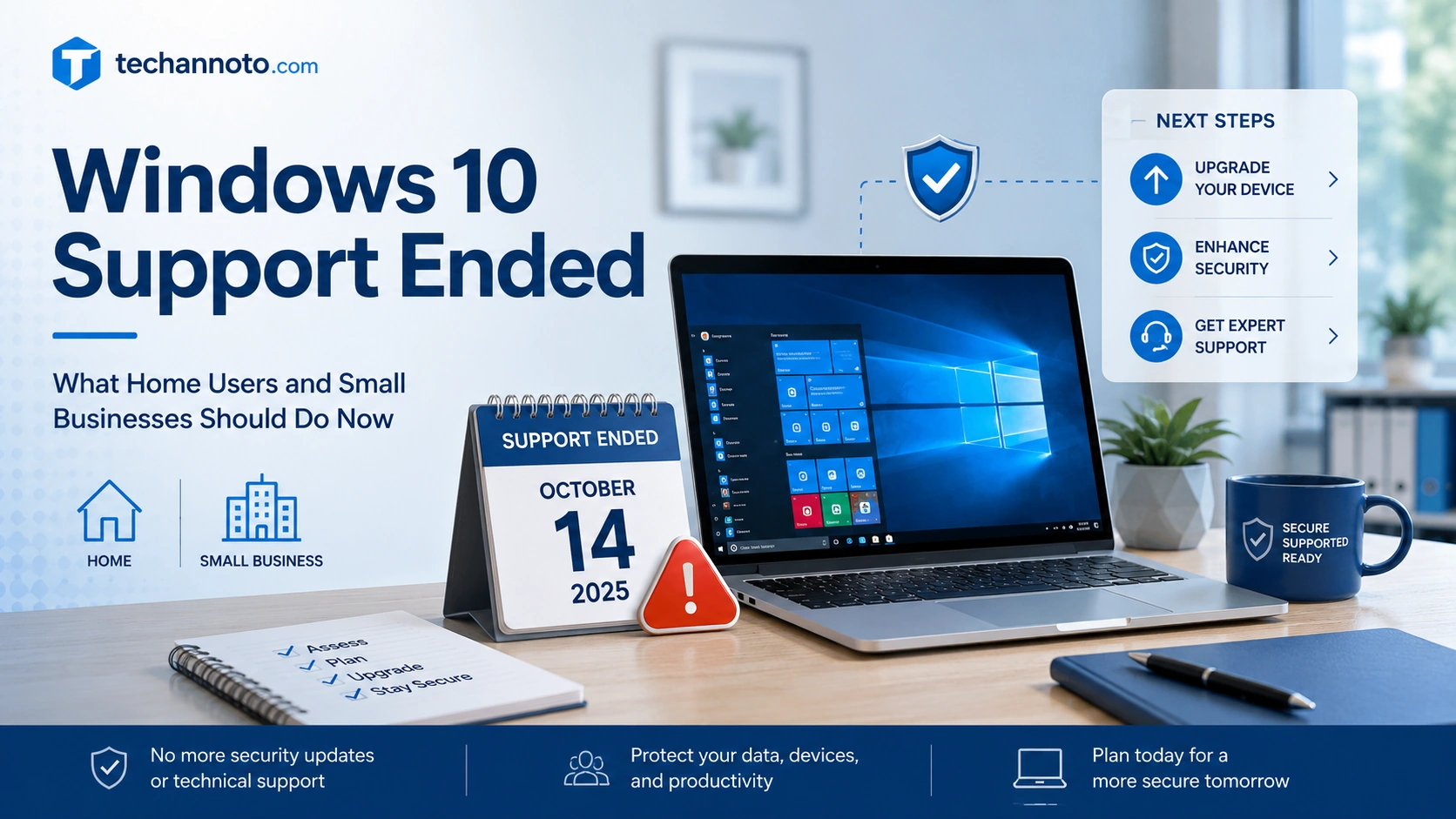
Windows 10 support ended on October 14, 2025. That does not mean your Windows 10 computer suddenly stopped working. It may still start, open files, browse the web, and run many of your existing applications.
What changed is the risk profile. Microsoft no longer provides regular Windows 10 software updates, security fixes, or standard technical support for Windows 10 PCs unless the device is covered by an eligible Extended Security Updates (ESU) program. Microsoft says Windows 10 PCs will continue to function, but they will no longer receive regular security updates, making them more vulnerable over time. (Microsoft)
For home users, this means it is time to decide whether to upgrade, replace the PC, or use ESU temporarily. For small businesses, it means Windows 10 should be treated as a technology risk that needs a simple, documented plan.
What “End of Support” Means in Plain English
End of support means Microsoft is no longer providing regular Windows 10:
- Security updates
- Software fixes
- Feature updates
- Technical assistance
Your PC may still work, but unsupported systems become more attractive targets over time because new weaknesses may no longer be fixed. Microsoft states that unsupported Windows PCs are more vulnerable to viruses and malware, and CISA (Cybersecurity and Infrastructure Security Agency) warns that continuing to use end-of-life software creates risk because attackers can exploit security vulnerabilities that are no longer being addressed. (Microsoft)
For everyday users, the biggest concern is not that Windows 10 stops working. The concern is that a working computer can still become a weak point for malware, ransomware, phishing payloads, browser-based attacks, compromised email attachments, unsupported applications, and older drivers.
For small businesses, there is an added concern: unsupported software may create problems with compliance, customer data protection expectations, cyber insurance reviews, vendor audits, and general IT support costs. Microsoft specifically notes that organizations running Windows 10 may find it challenging to maintain regulatory compliance with unsupported software. (Windows Blog)
Step 1: Check Whether Your PC Can Upgrade to Windows 11
The best first step is to check whether your current Windows 10 PC is compatible with Windows 11.
Microsoft recommends using either:
- PC Health Check
- Windows Update
PC Health Check can tell you whether your Windows 10 device meets Windows 11 requirements and explain why a device is or is not eligible. Windows Update can also assess upgrade eligibility from Settings > Update & Security > Windows Update. (Microsoft Support)
Common Windows 11 compatibility blockers include:
- Unsupported processor
- Less than 4 GB RAM
- Less than 64 GB storage
- Missing or disabled TPM 2.0
- Secure Boot or UEFI limitations
- Graphics or display limitations
Microsoft lists Windows 11 minimum requirements including a compatible 64-bit processor, 4 GB RAM, 64 GB storage, UEFI Secure Boot capability, TPM 2.0, and compatible graphics. (Microsoft Support)
Avoid forcing Windows 11 onto unsupported hardware
There are unofficial ways to install Windows 11 on unsupported PCs, but this is not a good path for typical home users or small businesses. Microsoft says installing Windows 11 on devices that do not meet minimum requirements is not recommended, may cause compatibility issues, and may leave the device unsupported and not entitled to updates. (Microsoft Support)
For most people, the safer options are: upgrade if eligible, replace the PC if it is not, or use ESU temporarily while you plan the move.
Step 2: Back Up Before Making Changes
Before you upgrade, replace, reset, recycle, or experiment with a new operating system, back up your important data.
At a minimum, back up:
- Documents
- Photos and videos
- Desktop files
- Downloads you still need
- Browser favorites or bookmarks
- Saved passwords or password manager data
- Tax records, banking records, and business files
- Software license keys
- Accounting, payroll, customer, and project files
Microsoft provides Windows Backup for Windows 10 and Windows 11, which can back up files, themes, settings, installed apps, Wi-Fi information, and selected folders to OneDrive. (Microsoft Support)
You can also use File History with an external drive or network location. Microsoft describes File History as a way to automatically save copies of personal files and restore earlier versions if something goes wrong. (Microsoft Support)
For home users, a practical approach is to use both cloud backup and an external drive. For small businesses, do not begin upgrades or replacements until business-critical files have been backed up and someone has confirmed that the backup can actually be restored. CISA recommends performing and testing backups, noting that many ransomware victims had no backups or backups that were incomplete or damaged. (CISA)
Step 3: Choose the Best Path
Use this simple decision guide.
If the PC is compatible and performing well
Upgrade to Windows 11. This is usually the simplest and lowest-cost option if the device is healthy and meets requirements. Microsoft recommends upgrading eligible PCs through Windows Update. (Microsoft)
If the PC is old, slow, unreliable, or incompatible
Plan to replace it with a Windows 11-compatible device. This is usually better than spending time and money trying to extend the life of a PC that is already causing problems.
If the PC runs important software that needs more time to migrate
Consider Windows 10 Extended Security Updates temporarily. ESU can reduce risk while you test applications, replace devices, or migrate data, but it should not become the long-term plan.
If the PC is used for banking, business files, email, customer data, or administrator accounts
Do not leave it unsupported without a plan. These are higher-risk activities because compromised email, saved passwords, financial accounts, or business files can create much bigger problems than a single infected PC.
If the PC is used only offline for a narrow purpose
The risk is lower, but not zero. USB drives, occasional internet access, shared folders, remote access tools, and local network connections can still introduce risk. If the PC must remain in place, limit what it can access.
Extended Security Updates Explained
Extended Security Updates, or ESU, are Microsoft’s temporary option for people and organizations that need more time to move away from Windows 10.
Microsoft describes ESU as a way for enrolled Windows 10 PCs to continue receiving security updates after end of support. Microsoft’s Lifecycle FAQ also describes ESU as a last-resort bridge, not a long-term solution. (Microsoft Learn)
What ESU provides
ESU provides critical and important security updates for enrolled Windows 10 PCs after the final day of support. For consumer Windows 10 ESU, Microsoft says updates are delivered through Windows Update as they become available. (Microsoft)
What ESU does not provide
ESU does not turn Windows 10 back into a fully supported operating system. It does not provide a long-term future, new features, broad technical support, or a reason to delay planning indefinitely. Microsoft states ESU is intended as a temporary bridge while moving to a newer supported platform. (Microsoft Learn)
Consumer ESU
For home users, Microsoft’s current consumer ESU page lists three enrollment options:
- No additional cost if syncing PC settings
- Redeem 1,000 Microsoft Rewards points
- One-time purchase of $30 USD or local equivalent plus tax
Microsoft says all consumer ESU enrollment options provide extended security updates through October 13, 2026, and one ESU license can be used on up to 10 eligible devices tied to the same Microsoft account. (Microsoft)
Business and commercial ESU
For organizations, ESU is handled differently. Microsoft Learn describes the Windows 10 ESU program as a paid subscription service for organizations that need critical and important security updates after October 14, 2025. (Microsoft Learn)
Business pricing and eligibility can vary by licensing channel, management method, and commercial scenario, so small businesses should verify details through Microsoft, their Microsoft 365 admin/licensing portal, CSP, reseller, or IT provider. Microsoft’s Windows IT Pro Blog has described the base commercial ESU license as starting at $61 USD per device for Year 1, with pricing increasing in later years. (TECHCOMMUNITY.MICROSOFT.COM)
The key point: ESU buys time. It should be paired with a migration or replacement plan.
Small Business Considerations
For small businesses, the best approach is to avoid handling one computer at a time with no plan. Start with a simple inventory.
Create a list of every Windows 10 device, including:
- User or department
- Device model and age
- Windows version
- Windows 11 compatibility status
- Business function
- Critical applications
- Data stored or accessed
- Replacement priority
- ESU status, if applicable
The FTC recommends that small businesses create and maintain an inventory of hardware, software, data, and services, and NIST provides that asset inventories help organizations identify risk, track assets that need updating, and make protections more precise and cost-effective. (Federal Trade Commission)
Prioritize systems used for:
- Accounting
- Payroll
- Customer records
- Remote access
- Banking
- Admin accounts
- Line-of-business applications
- Security tools
- Shared drives or sensitive files
Also check vendor support for printers, scanners, VPN clients, accounting tools, industry-specific applications, and security software before upgrading or replacing PCs. Microsoft warns that applications running on Windows 10 may no longer be supported over time because the platform is no longer receiving feature updates. (Windows Blog)
Small businesses should also review legal, regulatory, contractual, cyber insurance, and customer data obligations. The FTC specifically recommends that businesses understand and track legal, regulatory, and contractual cybersecurity requirements and determine whether cybersecurity insurance is appropriate. (Federal Trade Commission)
If a Windows 10 device must remain temporarily, document the exception, enroll in ESU where applicable, limit network access, remove unnecessary software, restrict admin rights, and avoid using that machine for sensitive work.
Home User Recommendations
For home users, the main advice is simple: do not ignore Windows 10 end of support just because the PC still turns on.
If your PC can upgrade to Windows 11, upgrade after backing up your data. If your PC is too old or unreliable, start planning a replacement. Microsoft recommends moving to Windows 11 to maintain security and feature updates. (Microsoft)
While transitioning, keep your browser, Microsoft 365 apps, antivirus, and other software updated. Microsoft says Microsoft 365 Apps on Windows 10 will continue receiving security updates through October 10, 2028, but also states Microsoft 365 is no longer supported on Windows 10 now that Windows 10 has reached end of support and recommends moving to Windows 11 to avoid reliability and performance issues. (Microsoft Support)
Avoid using unsupported Windows 10 PCs for online banking, tax filing, password management, healthcare portals, business email, or sensitive accounts. Antivirus helps, but it is not a substitute for operating system security updates. Patches and software updates address security vulnerabilities; when the operating system no longer receives those fixes, a major layer of protection is missing. (CISA)
Before disposing of, donating, or selling an old PC, back up your information, erase the drive, and dispose of the computer responsibly. The FTC recommends backing up information, erasing the hard drive, and then disposing of the computer. (Consumer Advice)
What About Linux or ChromeOS Flex?
Some users may consider Linux or ChromeOS Flex for older hardware. These can be reasonable choices in the right situation, but they are not drop-in replacements for everyone.
ChromeOS Flex may work on many older Intel or AMD computers, but Google only guarantees certified models, and some hardware features may not work as expected. Google also notes that ChromeOS Flex differs from ChromeOS in areas such as TPM protection, Android app support, Windows VM support, hardware support, and management features. (Google Help)
ChromeOS Flex can be tested from a USB drive before installation, but a full installation erases existing data, applications, settings, and the operating system on the device. Google recommends backing up data before installing. (Google Help)
Linux can be useful for web browsing, basic office work, and some older hardware, but users should confirm printer support, scanner support, Microsoft Office needs, accounting software, VPN tools, and industry-specific application requirements before switching.
For most small businesses, Windows 11 is usually the cleaner path unless there is a specific reason and skillset to support an alternative operating system.
Risks of Keeping Windows 10 Unsupported
Keeping Windows 10 without ESU or a migration plan can create several risks:
Malware and ransomware exposure. Unsupported software becomes riskier because new vulnerabilities may not be fixed. CISA warns that end-of-life software can allow attackers to exploit vulnerabilities. (CISA)
Browser and email attack risk. Many attacks begin with a link, attachment, malicious website, or phishing message. The operating system is one of the layers that helps contain damage.
Unsupported apps and drivers. Over time, vendors may stop testing or supporting their software on Windows 10. Microsoft warns that applications running on Windows 10 may experience decreased functionality as the platform ages. (Windows Blog)
Compliance and insurance concerns. Businesses using unsupported systems may face issues with regulatory expectations, customer security reviews, contracts, or cyber insurance. Microsoft specifically flags compliance concerns for organizations running Windows 10 after support ends. (Windows Blog)
Increased support costs. Older PCs often take more time to troubleshoot, have more compatibility problems, and may fail at inconvenient times.
False sense of safety from antivirus alone. Antivirus is useful, but it does not replace operating system patches. Security updates fix vulnerabilities; antivirus generally tries to detect or block threats after the fact.
Practical Checklist
A. Home User Checklist
- Check whether your PC can run Windows 11 using PC Health Check or Windows Update. (Microsoft Support)
- Back up your files before upgrading or replacing the PC using Windows Backup, OneDrive, File History, or an external drive. (Microsoft Support)
- Verify your backup by opening a few restored files or confirming they are available on another device. CISA recommends testing backups, not just creating them. (CISA)
- Upgrade to Windows 11 if the PC is compatible and working well. Microsoft recommends Windows 11 for continued security and feature updates. (Microsoft)
- Replace the PC if it is incompatible, unreliable, or too slow. Windows 11 has specific requirements, including TPM 2.0, Secure Boot capability, supported CPU, RAM, and storage. (Microsoft Support)
- Use consumer ESU only as a temporary bridge if you need more time. Microsoft says ESU coverage runs through October 13, 2026, for enrolled consumer devices. (Microsoft)
- Avoid sensitive activity on unsupported Windows 10 PCs, including banking, tax filing, password management, and healthcare portals. Unsupported Windows PCs become more vulnerable over time. (Microsoft)
- Wipe and recycle old PCs responsibly before donation, resale, or disposal. The FTC recommends backing up, erasing the hard drive, and disposing of the computer safely; the EPA recommends deleting personal information and using recycling options. (Consumer Advice)
B. Small Business Checklist
- Create an inventory of every Windows 10 device including user, location, model, business function, applications, and Windows 11 compatibility. (Federal Trade Commission)
- Prioritize high-risk systems first, especially PCs used for email, remote access, customer data, accounting, payroll, admin accounts, and banking. FTC guidance recommends identifying business assets and risks. (Federal Trade Commission)
- Back up business-critical data before upgrades or replacements. CISA and FTC both emphasize regular, tested backups as part of small business cybersecurity and ransomware resilience. (CISA)
- Check application and vendor support for accounting tools, printers, scanners, VPN clients, security tools, and industry-specific software before upgrading. Microsoft warns that Windows 10 apps may lose support or functionality over time. (Windows Blog)
- Decide upgrade vs. replacement vs. ESU for each device. Microsoft recommends Windows 11 for eligible PCs, new Windows 11 devices for incompatible PCs, and ESU where more time is needed. (Microsoft)
- Use ESU only for documented exceptions. Microsoft describes ESU as a temporary bridge, not a long-term solution. (Microsoft Learn)
- Review compliance, contract, and cyber insurance obligations. The FTC recommends tracking legal, regulatory, and contractual cybersecurity requirements and evaluating cyber insurance needs. (Federal Trade Commission)
- Limit network access for any Windows 10 PC that must remain. NIST explains that grouping assets by function and criticality and controlling communication between zones can reduce risk. (NIST)
- Avoid using unsupported PCs for sensitive work. Unsupported Windows devices become more vulnerable and susceptible to malware and viruses. (Microsoft)
- Document your plan and target dates. A simple written plan helps avoid missed devices, last-minute purchases, and unmanaged exceptions.
Recommended Timeline
This week
Identify all Windows 10 PCs. Back up important data. Run PC Health Check or Windows Update to determine Windows 11 compatibility. (Microsoft Support)
Next 30 days
Decide which PCs will be upgraded, replaced, enrolled in ESU, or retired. For small businesses, confirm critical application, printer, scanner, VPN, and security tool compatibility.
Next 60–90 days
Complete upgrades and replacements for high-risk systems first. Prioritize devices used for email, banking, customer records, remote access, payroll, accounting, and admin accounts.
Before ESU expiration
Finish the migration away from Windows 10. Consumer ESU currently provides coverage through October 13, 2026, so it should be used as a planning window, not a permanent solution. (Microsoft)
Conclusion
Windows 10 may still run, but it should no longer be treated as a fully supported everyday operating system unless the device is enrolled in an applicable ESU program.
For home users, the safest path is to back up your data, check Windows 11 compatibility, and either upgrade or replace the PC. For small businesses, the right answer is a simple device inventory, risk-based prioritization, and a clear plan for upgrades, replacements, or short-term ESU coverage.
The worst option is doing nothing and hoping the PC keeps working. It probably will — until a security issue, software conflict, or hardware failure forces a rushed decision.
If you need help evaluating Windows 10 PCs, checking upgrade readiness, planning backups, or building a replacement roadmap, now is the right time to act.
FAQ
1. Will my Windows 10 computer still work after support ends?
Yes. Microsoft says Windows 10 PCs will continue to function after end of support. The issue is that they no longer receive regular Windows 10 security updates, software updates, feature updates, or technical support unless covered by ESU where applicable. (Microsoft)
2. Is Windows 10 ESU a good long-term plan?
No. ESU is best used as a temporary bridge. Microsoft describes ESU as a last-resort option that helps customers stay more secure while migrating to a newer supported platform. (Microsoft Learn)
3. Should I replace my PC if it cannot run Windows 11?
Usually, yes — especially if the PC is old, slow, unreliable, or used for email, banking, business files, customer data, or sensitive accounts. Microsoft does not recommend installing Windows 11 on unsupported hardware, and unsupported Windows 10 PCs become more vulnerable over time. (Microsoft Support)
Sources and References
- Microsoft: Windows 10 end of support and what it means for Windows 10 PCs. (Microsoft)
- Microsoft: Windows 10 Consumer Extended Security Updates, enrollment options, pricing, and October 13, 2026 coverage date. (Microsoft)
- Microsoft Learn: Windows 10 ESU program for organizations. (Microsoft Learn)
- Microsoft Lifecycle FAQ: ESU as a temporary bridge, not a long-term solution. (Microsoft Learn)
- Microsoft Support: Windows 11 system requirements and upgrade eligibility. (Microsoft Support)
- Microsoft Support: PC Health Check. (Microsoft Support)
- Microsoft Support: Unsupported Windows 11 hardware warning. (Microsoft Support)
- Microsoft Support: Windows Backup and File History. (Microsoft Support)
- Microsoft Support: Microsoft 365 support considerations on Windows 10 after end of support. (Microsoft Support)
- CISA: Risks of end-of-life software and importance of tested backups. (CISA)
- FTC: Small business cybersecurity, asset inventory, legal/regulatory requirements, and cyber insurance considerations. (Federal Trade Commission)
- NIST: Asset inventory and segmentation guidance for cybersecurity risk reduction. (NIST)
- FTC and Microsoft: Removing personal information before disposing of a PC. (Consumer Advice)
- EPA: Electronics donation and recycling guidance. (US EPA)
Google: ChromeOS Flex limitations, certified models, and installation cautions. (Google Help)