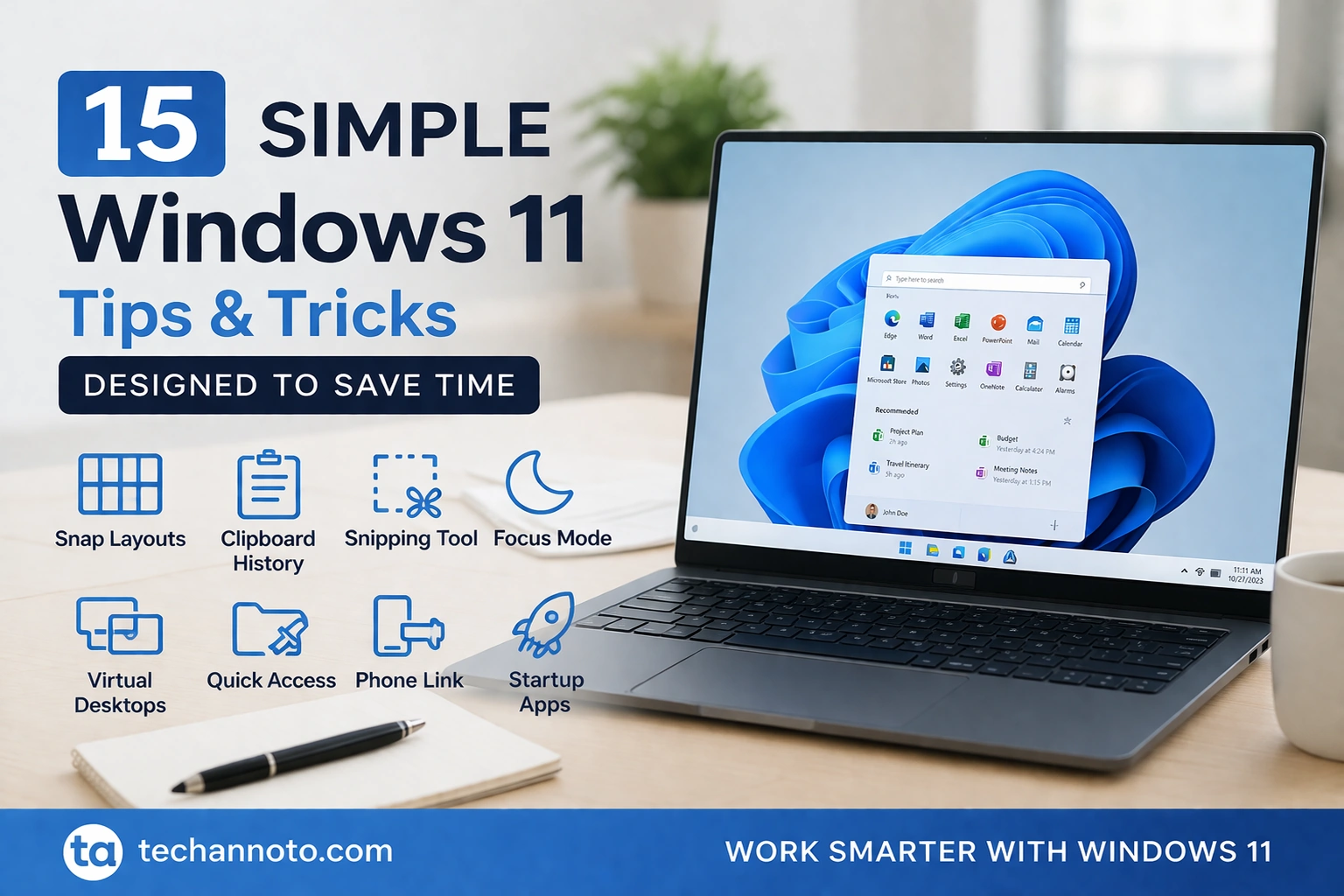
Windows 11 has plenty of features, but the ones that really help most people are usually the simple ones. A faster way to organize your screen, grab a screenshot, find a file, or reduce distractions may not seem like a huge deal at first. But when you repeat those little tasks all day, small improvements can save a surprising amount of time.
The good news is you do not need extra software to get those benefits. Windows 11 already includes a lot of built-in tools that can help you work faster and keep your day moving.
1. Use Snap Layouts to organize open windows faster
If you work with multiple apps open at once, Snap Layouts can save you from constantly dragging windows around by hand. You can quickly place apps into a clean layout and make your desktop easier to manage.
Try hovering over the maximize button on an open window and choosing a layout, or use Windows key + Z. It is one of the easiest ways to clean up a cluttered screen in seconds.
2. Turn on Clipboard History
Clipboard History is one of the most useful Windows 11 features that many people forget to use. Instead of only pasting the last thing you copied, you can pull up a list of recently copied items.
Press Windows key + V to open it. If you copy links, usernames, snippets of text, or repeated responses throughout the day, this can save a lot of back-and-forth.
3. Use Snipping Tool for quick screenshots
Taking a full screenshot and cropping it later works, but it is slower than it needs to be. Snipping Tool lets you capture only the part of the screen you actually want.
Press Windows key + Shift + S to open the screenshot tool. It is perfect for grabbing an error message, highlighting part of a webpage, or sharing a specific section of a document without extra editing.
4. Try Voice Typing for drafts and notes
Sometimes talking is faster than typing. If you need to draft a quick email, jot down ideas, or create rough notes, Voice Typing can help you get words on the screen faster.
Press Windows key + H in a text field and start speaking. Even if you only use it for first drafts, it can cut down the time spent typing everything manually.
5. Use Focus and Do Not Disturb to cut distractions
Notifications are helpful until they start interrupting everything. Windows 11 includes Focus and Do Not Disturb to help reduce those interruptions when you need uninterrupted work time.
This is especially useful when you are writing, reviewing documents, or trying to finish a task without getting pulled away by every banner and alert.
6. Set up multiple desktops for different tasks
Virtual desktops are a simple way to separate different types of work. You might keep one desktop for communication apps, one for focused work, and another for personal tasks.
Press Windows key + Tab to open Task View. This helps reduce clutter and makes it easier to stay mentally organized when you have a lot going on.
7. Use Nearby Sharing instead of emailing files to yourself
If you work across two Windows PCs, Nearby Sharing can be a faster option than sending files through email or cloud storage just to move them from one device to another.
When both devices are nearby and set up properly, you can share files, links, and photos more directly. It is a small shortcut, but it can save time when you need it.
8. Open Quick Settings instead of digging through menus
Quick Settings is one of those features that becomes more useful the more you use it. It gives you fast access to common controls like Wi-Fi, volume, brightness, and other system options.
Press Windows key + A to open it. That is a lot faster than opening the full Settings app every time you want to make a simple change.
9. Search first instead of hunting manually
A lot of time gets wasted clicking through folders, menus, and settings screens looking for something that Search could find faster. Windows 11 Search is often the quickest route to an app, file, or setting.
If you know even part of the name, searching is usually faster than browsing manually. This is a simple habit change that can pay off immediately.
10. Pin your most-used apps to the taskbar
If you open the same apps every day, pin them to the taskbar. It sounds basic, but it is one of the easiest ways to save a few clicks over and over throughout the day.
Your browser, File Explorer, email, chat app, and office tools should all be easy to reach. Once they are pinned, they are always one click away.
11. Clean up and organize the Start menu
The Start menu works better when it reflects how you actually use your PC. Instead of leaving it cluttered, pin the apps you use most and organize them in a way that makes sense to you.
That may mean grouping work apps together, keeping utility tools handy, and removing things you never touch. A cleaner Start menu makes it easier to get where you want faster.
12. Pin important folders to Quick Access in File Explorer
If you open the same folders repeatedly, Quick Access is worth using. Project folders, downloads, article drafts, invoices, and client files can all be pinned for faster access.
Open File Explorer with Windows key + E, then pin your frequently used folders to Quick Access. It saves you from clicking through the same folder path again and again.
13. Turn on Storage Sense
Storage Sense helps Windows 11 automatically clean up temporary files and remove unnecessary clutter. It is not flashy, but it is useful, especially if your PC tends to fill up over time.
Keeping storage under control can help avoid slowdowns and the hassle of doing manual cleanup later. It is a quiet little feature that can save time in the long run.
14. Use Phone Link to handle phone tasks from your PC
If your phone keeps pulling you away from your computer, Phone Link can help bring some of that activity onto your desktop. Depending on your setup, you can view messages, notifications, photos, and more from your PC.
That means fewer interruptions and less device switching during the day. It is especially handy if you spend long stretches working at your desk.
15. Disable startup apps you do not need
If your PC feels slow when you first sign in, too many startup apps may be part of the problem. Many apps launch automatically even when you do not really need them to.
Review your startup apps and turn off the ones that are unnecessary. A cleaner startup can make your PC feel faster and reduce clutter right from the beginning of your day.
Final thoughts
You do not need complicated tweaks or third-party tools to make Windows 11 work better for you. In most cases, the best time-saving improvements come from using the features that are already built in.
Start with just a few of these. Snap Layouts, Clipboard History, Snipping Tool, Quick Settings, and startup app cleanup are all easy places to begin. Once they become part of your routine, Windows 11 can feel a lot more efficient.